PharmaSync
Ctrl
+
KAuthentication Guide
This guide covers the complete authentication process: creating your account,
verifying your email address, logging in, and recovering your password.
Creating Your Account
To create a new PharmaSync account:
- To sign up for an account, navigate to Sign Up Page.
- Provide your first name, last name, email address, and create a strong password
- Accept the Terms of Service and Privacy Policy
- Click 'Create Account' to submit your registration
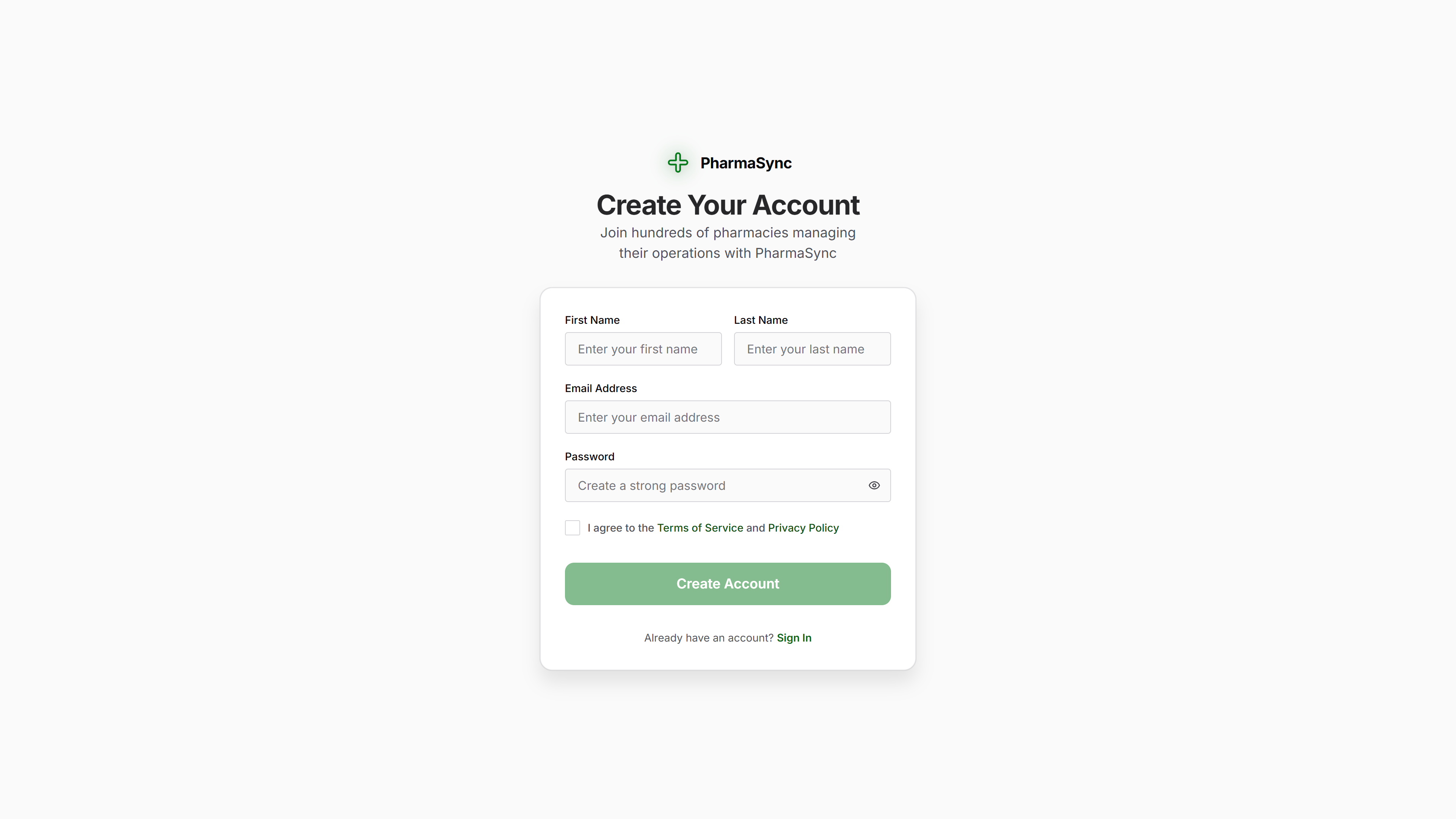
Fill in your details to create a new PharmaSync account
Click to zoom
Email Verification
After registration, you'll receive a verification email to confirm your email address.
- Look for an email from PharmaSync with the subject 'Verify Your Email Address'
- Click the verification link in the email to activate your account
- You'll be redirected to the login page once verified
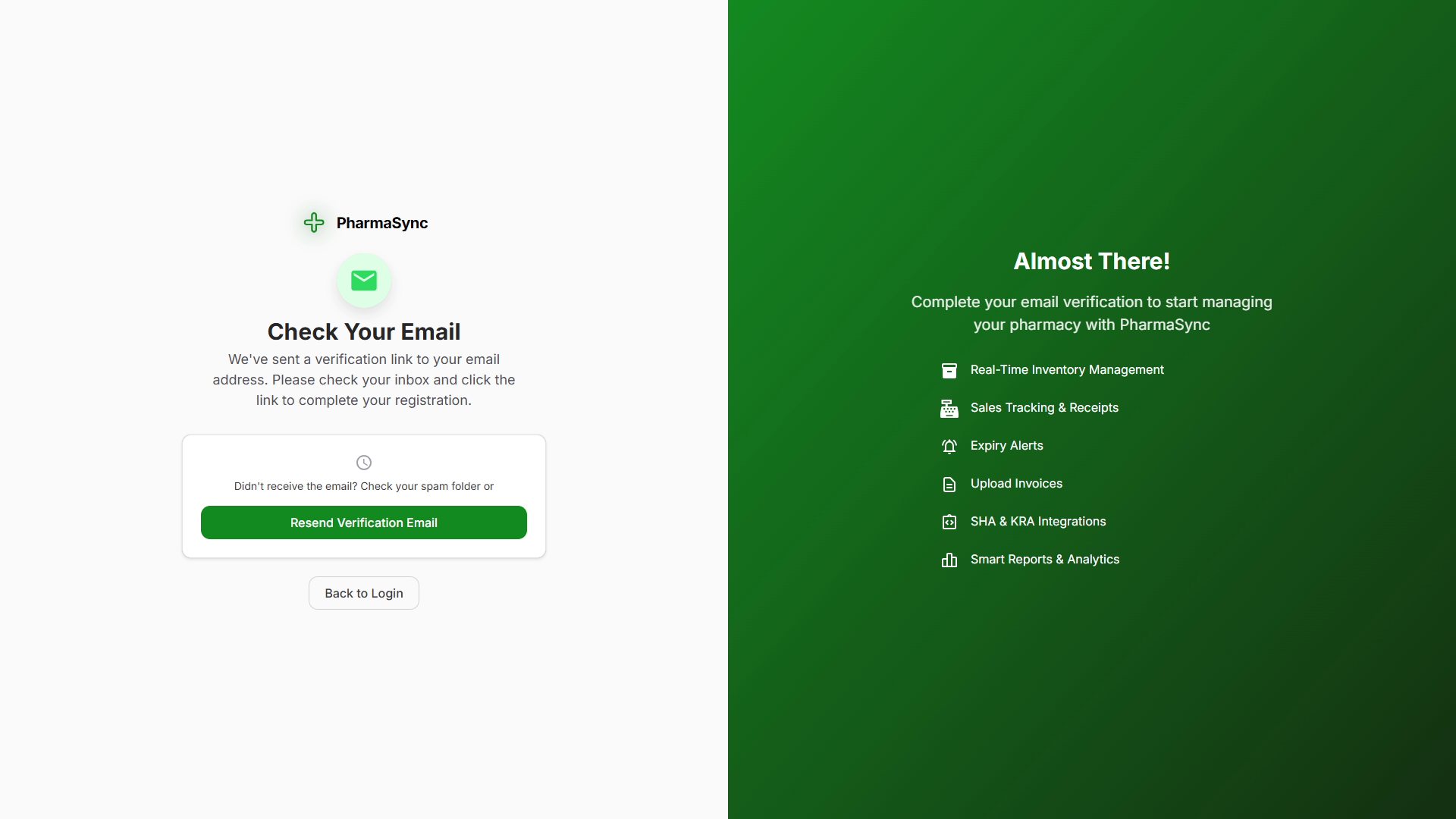
Click the verification link in your email to activate your account
If you didn't receive the verification email: - Check your spam/junk folder -
Make sure you entered the correct email address - Wait a few minutes and check
again - Click 'Resend Verification Email' on the verification page - Contact
support if the issue persists
Forgot Password
Forgot your password? Here's how to reset it:
- On the login page, click the Forgot Password? link
- Enter the email address associated with your account
- Look for a password reset email from PharmaSync
- Click the link in the email and enter a new password
- Update your password manager with the new password
For security reasons: - Password reset links expire after 1 hour - You can
only request a reset 3 times per hour - If you continue to have issues,
contact support
Security Best Practices
Follow these best practices to protect your pharmacy data:
-
Use a Strong, Unique Password
- Don't reuse passwords from other services
- Use a password manager to generate and store complex passwords
-
Enable Remember Me Carefully
- Only use on trusted, personal devices
- Never enable on shared or public computers
-
Log Out When Done
- Always log out when finished, especially on shared devices
- Use keyboard shortcut:
Ctrl+Shift+L(Windows) orCmd+Shift+L(Mac)
-
Keep Email Secure
- Your email is your primary recovery method
- Enable two-factor authentication on your email account
-
Be Wary of Phishing
- PharmaSync will never ask for your password via email
- Always verify the URL before entering credentials
- Look for
https://and the lock icon in your browser
Common Issues
Cannot Verify Email
Problem: Verification link doesn't work or says 'Link Expired'
Solutions:
- Request a new verification email from the verification page
- Check that you're clicking the most recent verification email
- Clear your browser cache and try again
- Contact support if issues persist
Cannot Log In
Problem: "Invalid email or password" error
Solutions:
- Double-check your email address for typos
- Ensure Caps Lock is off when entering password
- Use "Forgot Password" to reset if you're unsure
- Check if your account has been activated (email verified)
- Try a different browser or clear cache
Account Locked
Problem: "Account has been locked" message
Reason: Accounts are temporarily locked after 5 failed login attempts within 15 minutes.
Solution:
- Wait 30 minutes and try again
- Use "Forgot Password" to reset your password
- Contact support if you suspect unauthorized access